
Are you trying to add Facebook as a sales channel to your Shopify store to list products to your Facebook/Instagram shop but you are stuck because your Commerce Account is not eligible for shopping?
Don’t worry, it happens quite a lot and there is a workaround for it.
🛍️ TL;DR: Solving Commerce Manager Rejections
- The Compliance Hurdle: Most "Ineligible" statuses stem from a lack of Business Verification or failing Section 4 of the Commerce Eligibility Requirements (Account Trustworthiness).
- Verification Workaround: If your "Start Verification" button is greyed out, creating a Meta App ID and requesting advanced permissions is the key "backdoor" to unlock the process.
- The Trust Factor: AI and manual reviewers look for an "established presence." Maintain consistent posting and a baseline follower count before requesting a review to avoid instant rejections.
- Direct Intervention: When automated reviews fail, use the Commerce Manager "Help" portal to trigger a manual chat. A polite, evidence-based appeal is often the only way to bypass algorithmic blocks.
- Action: Check your Business Verification status in Meta Business Suite now. If you aren't "Verified," follow our App ID workaround to secure your ability to sell on Facebook and Instagram.
The below article will show you all the steps you can take to get your Commerce Account eligible and finish integrating Facebook with your Shopify store.
LATER EDIT
If your business is not based in the USA, starting on August 10th, 2023, you will no longer be able to host a shop on your Facebook Page or Instagram account, unless the shop has Checkout with Facebook or Instagram enabled in the US.
Businesses with a shop located in 11 markets (Denmark, France, Germany, Italy, the Netherlands, Norway, Spain, Sweden, Switzerland, the UK and Ukraine) will continue to be able to use Shops on Facebook and Instagram until further notice.
Read all about these changes here: https://www.facebook.com/business/help/953630345801994
If you want to enable checkout with Facebook and Instagram in the US, here are the requirements:
- Business category and type
- A business address in the US
- US Bank account details for collecting payouts
- A State Tax Registration Number for every state where the business operates, for tax purposes
- A Federal Tax Identification Number that matches the business representative’s name for financial reporting
- A business representative’s personal or business identity information to verify the authenticity of the business
- Shipping options, return policy, and a customer service email to set up customer service
CHECK YOUR BUSINESS VERIFICATION STATUS
The first thing you need to do is go through the Business Verification process with Facebook. If you have not done that yet, here is how to start it.
Go to Business Manager → Business Settings and click on the Business Info tab in the left
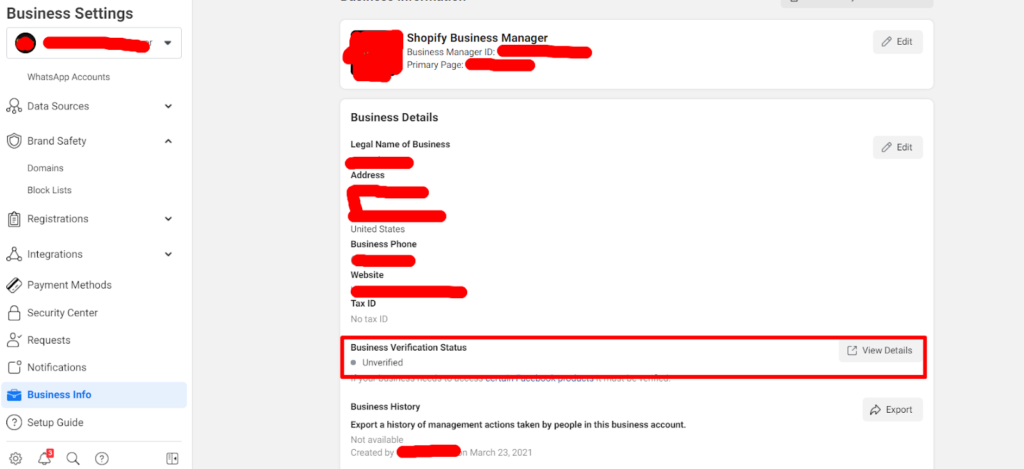
If your business status is Not Verified, click on View Details and see if the Business Verification button is active:
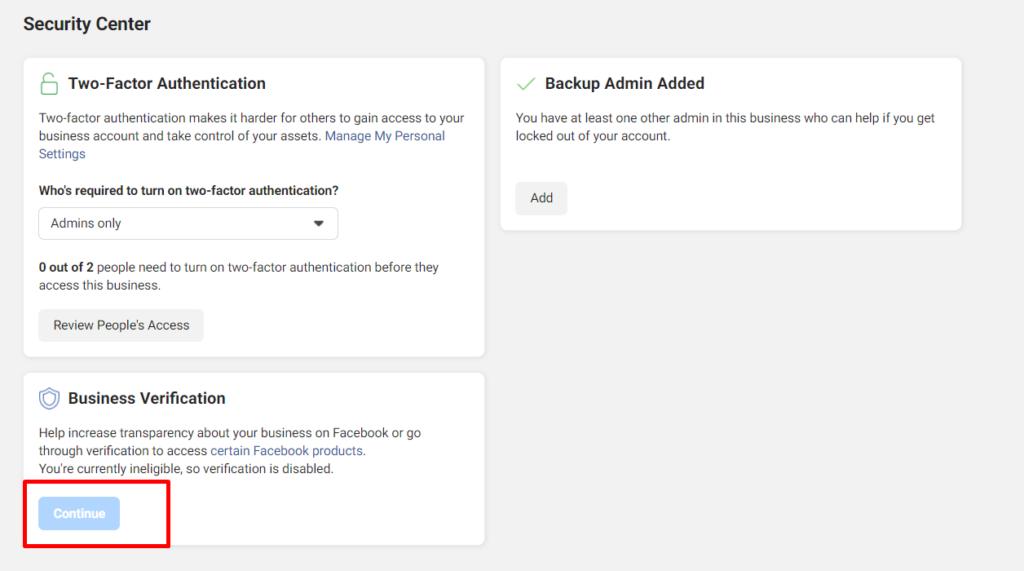
If it is active, you need to click continue and follow the steps by submitting the requested information and documents.
If it is not active, it’s because “your business is not eligible for business verification”.
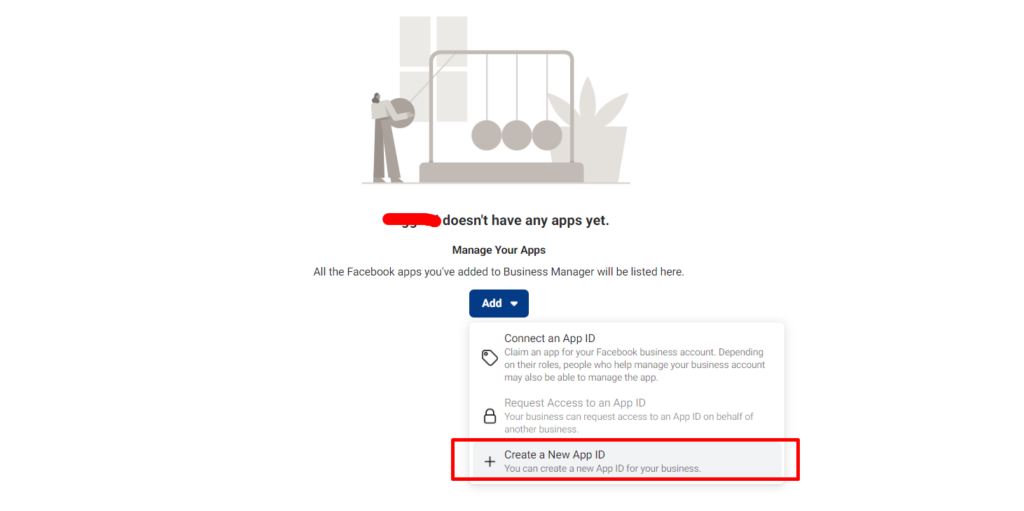
Here are the steps to pass this. Go to Accounts section in the left side menu and click on Apps.
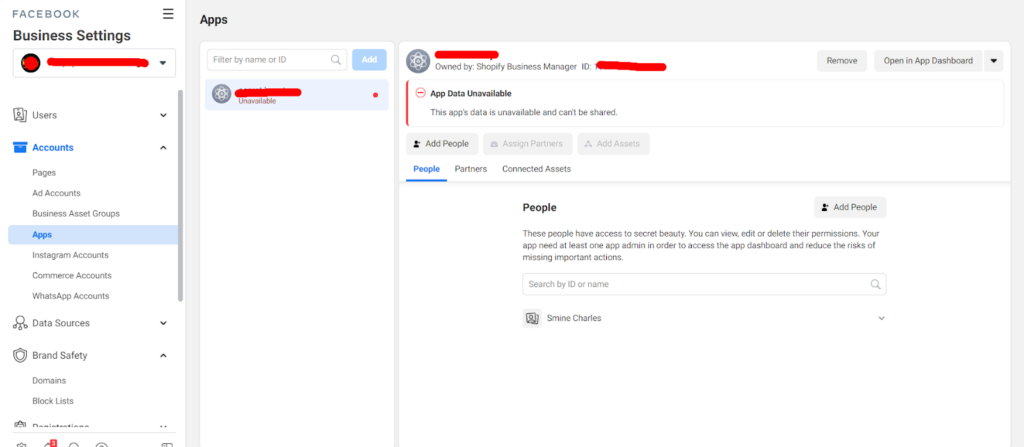
Add and Create a New App ID:
Select “Manage integrations for your business” click Next. Select Business and Next.
Choose a display name: same as your business name or page, enter an app contact email.
Hit Create app and enter your Facebook password again.
Now that you created the app, go to the left side menu and click on Settings → Basic:
Fill on a namespace for the app (same as your app name/business name, no uppercase letters), add your website domain, privacy policy url and terms of service url (from your website’s footer.
If you don’t have these, make sure to add them in Shopify Settings legal section and link it to your Footer menu), add your logo (1024×1024) and choose a category – Business and pages.
Save Changes
If the Verification section on this page does not show the Start Verification button as active, you need to do the following:
Now go to the left side menu again and select App Review → Requests
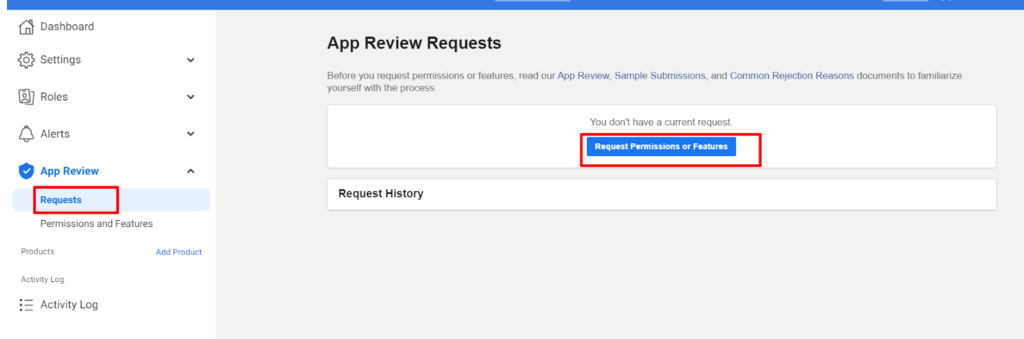
Request permissions or features. Scroll down to business_management and hit “Request Advanced Access”
Go back to Settings (left-side menu) → Basic
Now you should see the Start Verification button as active and click on it.
A new tab with Business Settings will appear. Please make sure you submit the correct details on this page as they will be sent to Facebook and verification approval depends on these.
Country, Address website, select your business, confirm your business details, and choose a verification method.
Once you submit these, Facebook can take from a few days to a few weeks to get back to you and ask for more details or verify your business.
While you wait for Facebook to verify your business, make sure your social media pages have at least a few followers/likes – the more the better. Maintain constant activity on both Facebook and Instagram, ask your friends and family to like and share the pages.
Section 4 of the Commerce Eligibility Requirements says:
“Your Facebook account and Page or Instagram professional account must have demonstrated trustworthiness, including through an authentic, established presence. This may also include maintaining a sufficient follower base.”
There is no clear number of what a sufficient follower base is so you need to get as many as possible.
Once your business status is Verified – good job!
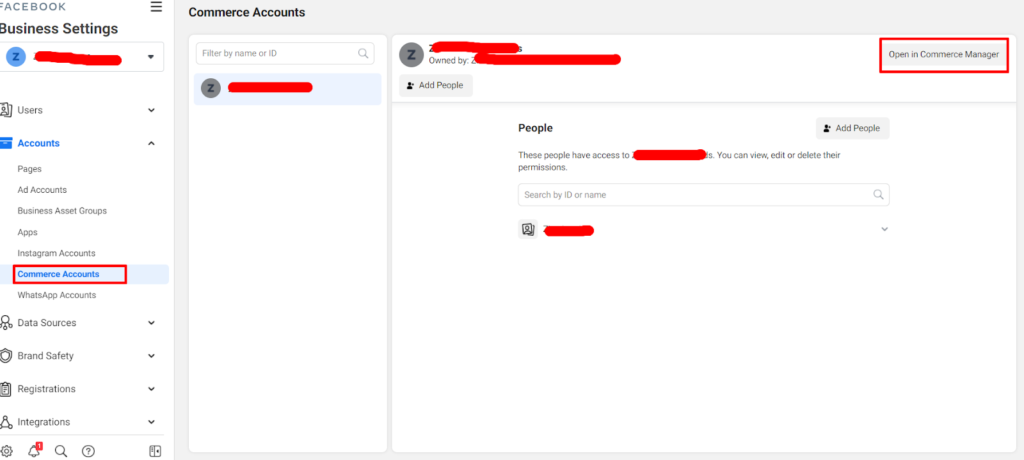
If you have a few followers/likes, we can now go to the Commerce account (Business Settings, Accounts, left side menu) → Open in Commerce Manager
In the Overview section you will be able to see: Action Needed, click on See Detail
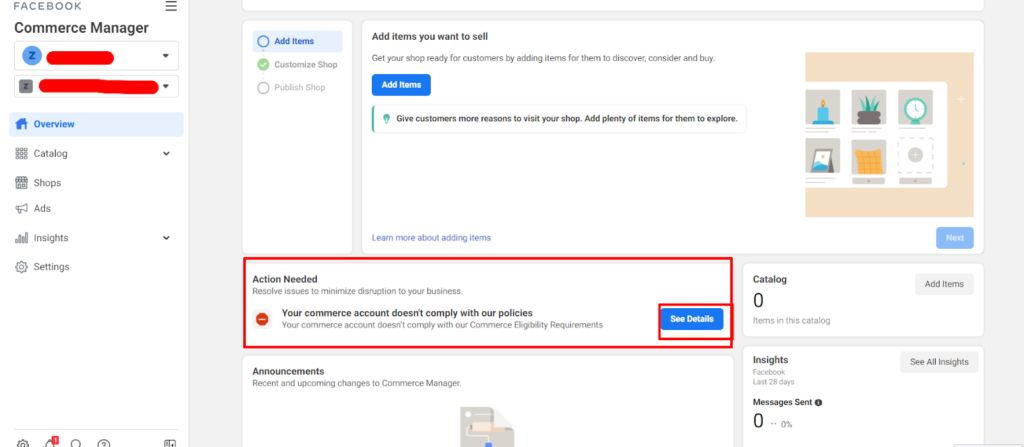
You should be able to see what is the reason why the Commerce Account is not eligible:
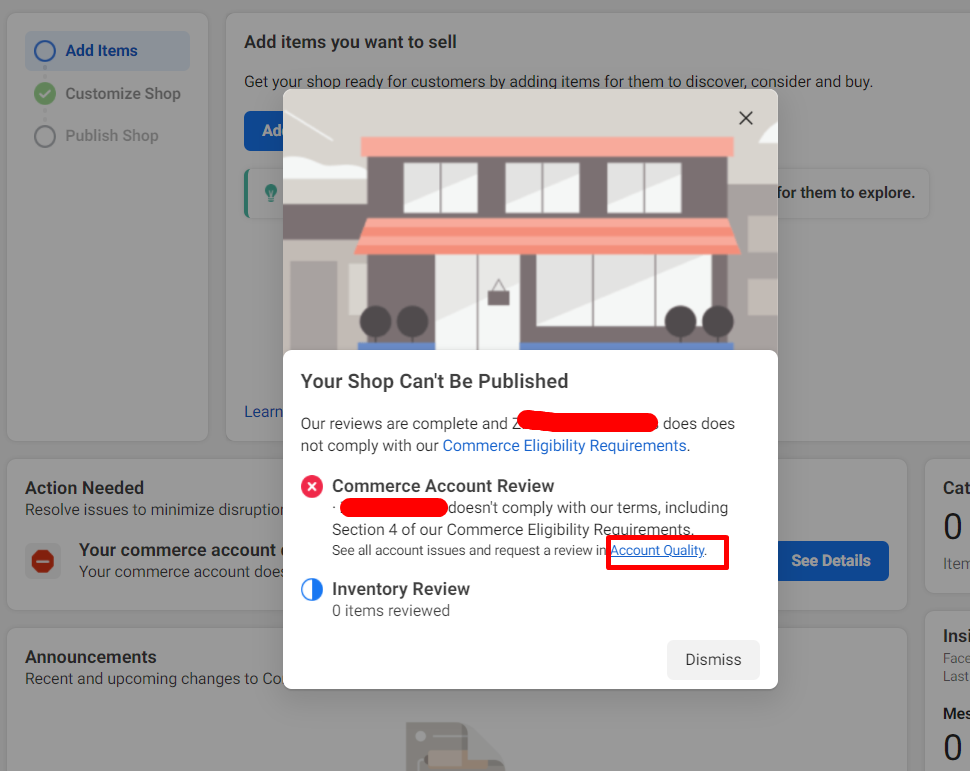
You can click on the Commerce Eligibility Requirements link to see what Section does not comply with.
If it is section 4 and you have a sufficient follower base, click on the Account Quality link and Request Review blue button on the right side.
If you are not able to request another review but know you have taken the necessary steps to comply with the requirements, you can just contact Facebook support and ask for a manual review. To reach out to Facebook support directly via chat, go to your Commerce Manager Overview page and scroll down to the bottom right corner where you can see Need Help?
Click on Learn More:
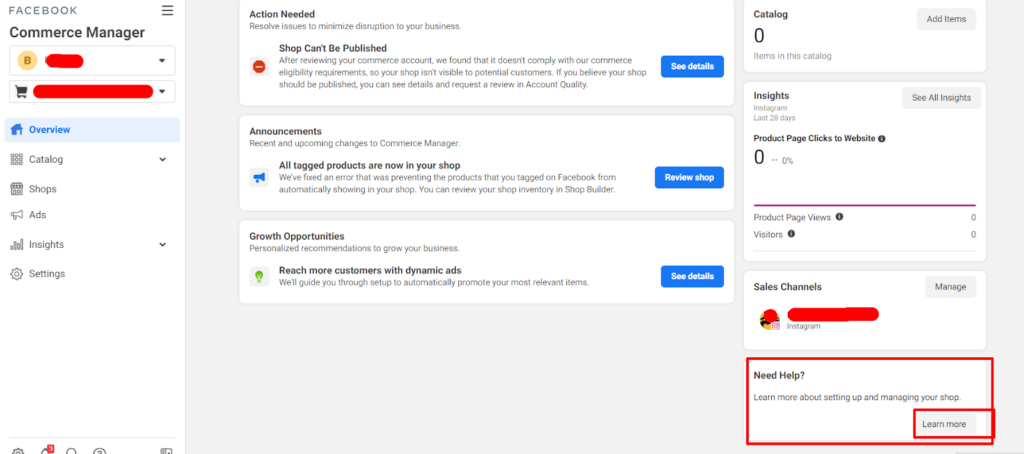
A new section on the right side will show with Recommended Articles and a button saying: Contact Facebook Support:
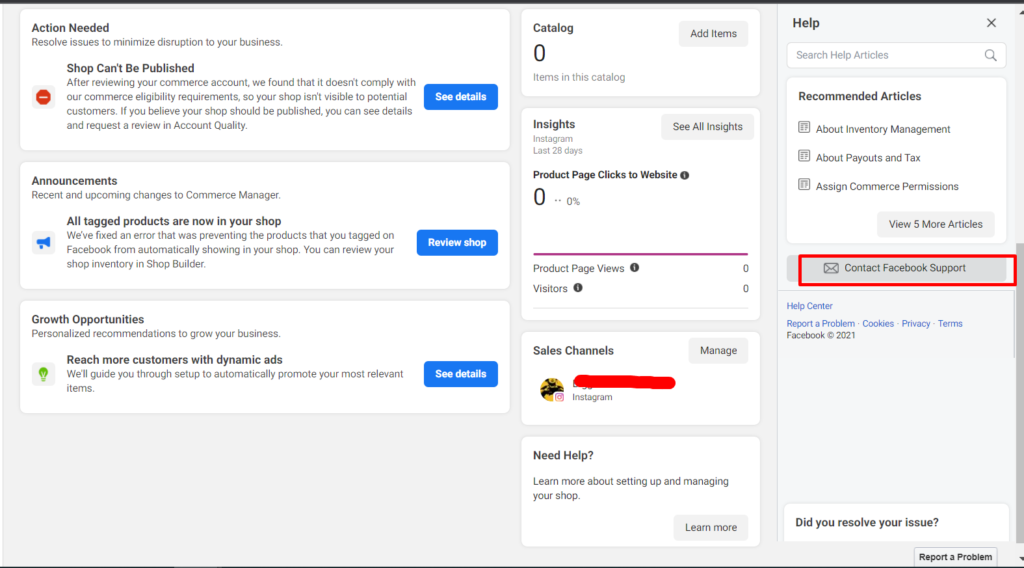
Select Account Setup, get approved for Instagram Shopping, ignore the Related help topics, and click on the small blue link saying:
Need more help? Contact Facebook Support
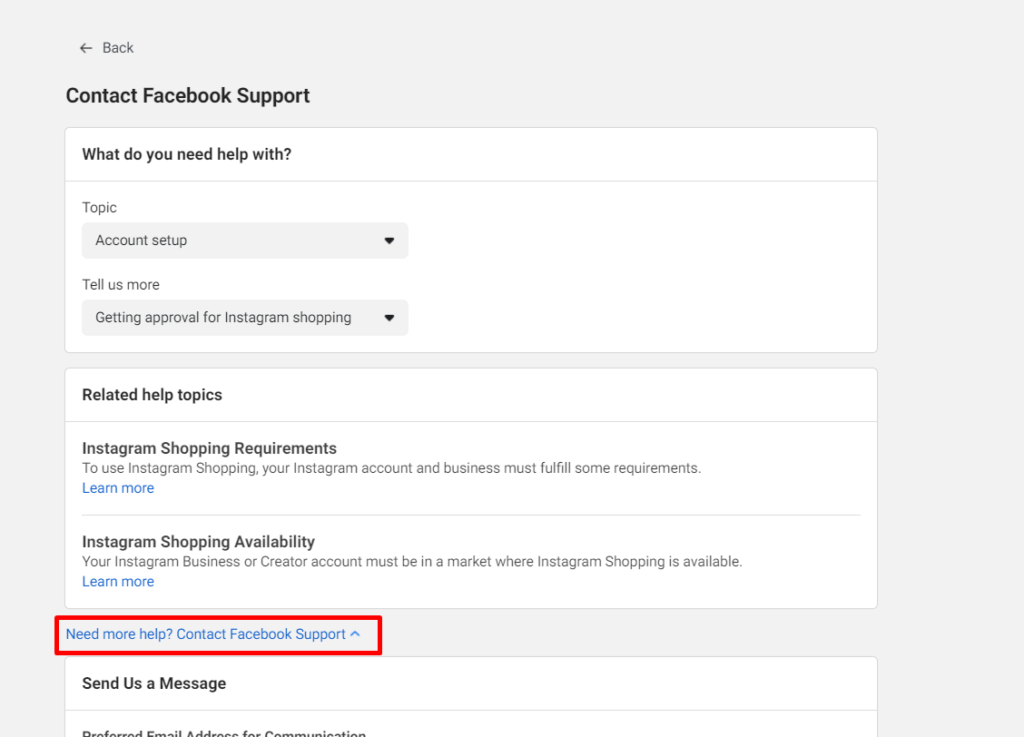
Add an email address, a message (see below), select Chat as a preferred contact method, and wait a few good minutes for a Facebook representative to join the chat.
In the message box, you can use the following template as an example:
“Hi,
This is ___ with ___ (Business name). I am reaching out as we are trying to integrate Facebook as a sales channel to our Shopify website. We are facing issues with our Commerce Account not being eligible for shopping. We have verified our domain and submitted all the necessary documents for Facebook Business Verification. We have slowly started to establish a presence and got a small but positive (or a solid amount depending on your situation) followers to our Facebook and Instagram pages.
We kindly ask that you help us with the Commerce Manager approval as we are planning to invest time and resources into growing our social media presence. “
Be kind and polite to the Facebook representative and make sure you clearly state the issues you are facing and clearly ask them for assistance on what exactly needs to be done to get the account approved.
Meta’s eligibility review heavily favors domains that demonstrate established organic presence and search authority alongside active social channels. Implementing
If you find the above information helpful, please feel free to leave us a review here:
https://www.facebook.com/ecommercetodayagency/reviews
If you need us to help with any of the following or have any questions, feel free to reach out.
We are here to help your eCommerce business scale!
Frequently Asked Questions
1. Why is my Facebook Commerce Account not eligible for shopping?
The most common reasons for ineligibility are a lack of “Business Verification” in Meta Business Suite or failing to meet the “Trustworthiness” standards in Section 4 of Meta’s Commerce Eligibility Requirements. This often happens if your account lacks an established presence, consistent activity, or a sufficient follower base.
2. How do I fix a greyed-out "Start Verification" button in Facebook Business Settings?
If the verification button is inactive, you can bypass this by creating a Meta App ID. Navigate to the “Apps” section in Business Settings, create a new app for business management, and request “Advanced Access” for business_management permissions. This action typically triggers the “Start Verification” button to become active.
3. How many followers do I need for Facebook and Instagram Shopping approval?
Meta does not disclose a specific numerical threshold for a “sufficient follower base.” However, an authentic and established presence is required. We recommend having at least a few hundred followers and several weeks of consistent posting activity to demonstrate trustworthiness before requesting a manual review.
4. Can I still host a Facebook Shop if my business is located outside the USA?
As of August 10, 2023, businesses outside the US can only host a shop if they are in one of the 11 exempt markets (including the UK, France, and Germany) or have enabled “Checkout with Facebook/Instagram” in the US. Most other international markets can no longer host shops on Facebook or Instagram pages unless they meet specific Meta requirements.
5. What should I do if my request for a Commerce Account review is denied?
If the automated review is denied and the “Request Review” button is no longer available, you must contact Facebook Support via the “Contact Support” chat in Commerce Manager. Use a professional appeal template to explain that you have verified your business, established a social presence, and are ready to invest in the platform.