

In today’s data-driven world you NEED to have a firm grip on your website’s analytics if you want to be successful.
Shopify gives you some reports but they are very basic. You need to understand where your visitors are coming from, what pages they are looking at. You need to know where they are leaving your website, and how their browsing experience is.
📊 TL;DR: Data-Driven Store Management
- Beyond Basic Reports: While Shopify offers native insights, professional growth requires the granular visibility of Google Analytics to track exact entry and exit points.
- The Tracking Trifecta: Success in the Shopify ecosystem relies on syncing Google Analytics, Google Merchant Center, and Google Ads to create a unified view of the customer journey.
- Enhanced Ecommerce: Don't just track visits; you must enable "Enhanced Ecommerce Reporting" within your GA settings to capture critical sales funnel data and product performance.
- The Integration Key: Bridging the gap is a simple two-step process: generating your Property Code (UA/GA4) and applying it directly to your Shopify Online Store Preferences.
- Data vs. Profit: Tools don't create profit—analysis does. Use your data to actively decrease bounce rates and optimize high-exit landing pages.
- Action: If you struggle with the technical handshake between Google and Shopify, contact us for a professional setup and account hook-up.
Think of it this way: if you ran a brick-n-mortar store you could watch your customers shop and ask them for feedback. Online, you need to work with numbers and analytics.
An essential tool for your activity will be Google Analytics. Together with Google Merchant and Google Ads, you will be able to record and use your visitors’ data.
The following guide will help you to:
– Create a Google Analytics account
– Connect the service to your Shopify store
CREATE A GOOGLE ANALYTICS ACCOUNT
Go to https://marketingplatform.google.com/about/analytics/ and sign in using your Gmail address. Then click the Get Started Today button.
- Add your Business Name
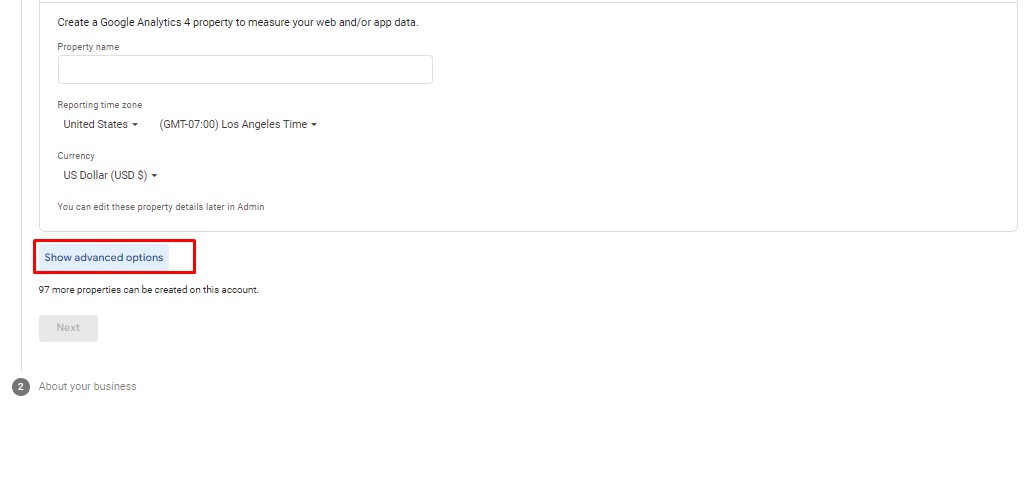
- Select the correct time zone, currency
- Click on “Show advanced options”
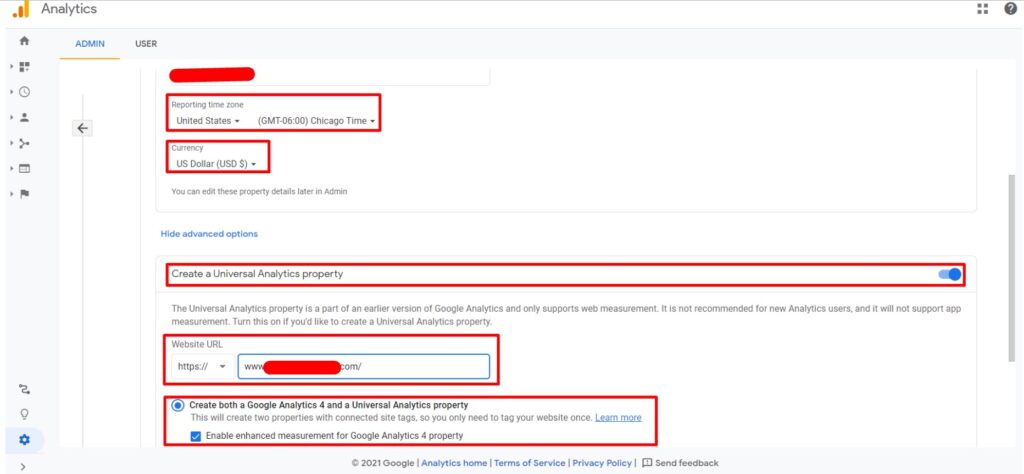
- Enable the Universal Analytics
- Add the website URL and make sure to create both Universal Analytics and the Google Analytics 4 accounts
After creating the account:
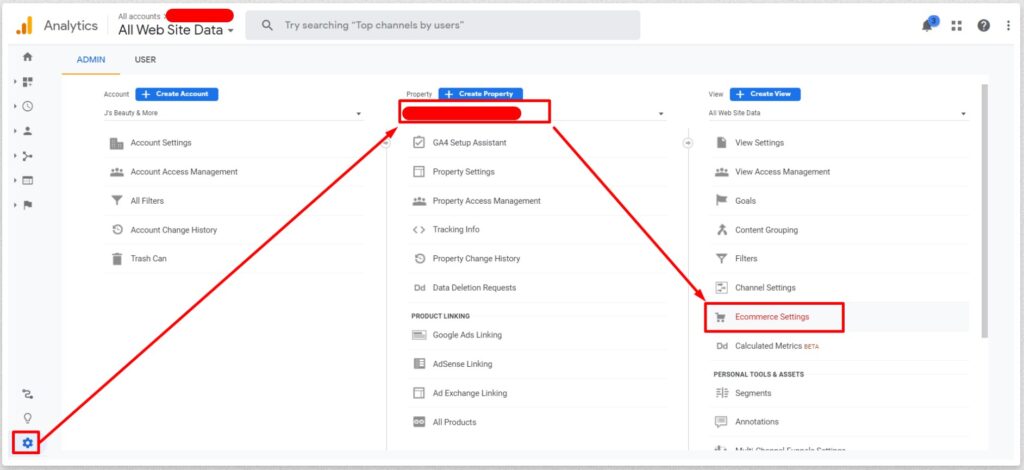
– Go to Admin, select the Property and click on Ecommerce Settings
Enable Ecommerce and Enable Enhanced Ecommerce Reporting
The final step is to copy the UA-XXXXXXXXX-Y property code to Shopify/Online Store / Preferences,,
Remember that Google Analytics won’t do anything to make your store more profitable on its own. You need to review your data and work to improve your conversion rate, decrease your bounce rate, optimize your landing and exit page, and more.
If you followed this guide and were still unable to set it up reach out – we will create the account and hook it up for you!
Related Article
If you don’t have your Business Manager set up completely please follow the below, step-by-step guide. How to Get Your Facebook Commerce Manager Eligible and Approved for Shopping
Frequently Asked Questions
1. Why should I use Google Analytics if Shopify already provides reports?
While Shopify’s native reports provide a great high-level overview, they are often too basic for deep scaling. Google Analytics allows you to see exactly where visitors drop off, how they interact with specific landing pages, and provides a more granular look at the customer journey that Shopify’s internal tools might miss.
2. What is "Enhanced Ecommerce Reporting" and why is it necessary?
Standard tracking only tells you that a sale happened. Enhanced Ecommerce Reporting provides a much deeper look into the shopping funnel. It tracks when customers add items to their carts, when they start the checkout process, and which specific products are being viewed but not purchased. This data is vital for optimizing your conversion rate.
3. Can I track my store using both Universal Analytics (UA) and Google Analytics 4 (GA4)?
Yes. In fact, the guide recommends creating both. While Universal Analytics has been the industry standard for years, GA4 is the modern platform for advanced tracking. Running both ensures you have historical data in the familiar UA interface while benefiting from the future-proof features of GA4.
4. Where do I actually place the Google Analytics code in Shopify?
You don’t need to manually edit your website’s liquid code for basic tracking. Once you have your Property ID (the code starting with UA- or your G- tag), you simply navigate to Online Store > Preferences within your Shopify admin and paste it into the designated Google Analytics section.
5. Will installing Google Analytics automatically increase my sales?
No. Google Analytics is a diagnostic tool, not a marketing engine. It provides the data you need to identify “leaks” in your sales funnel—such as high bounce rates or problematic exit pages. To increase profit, you must actively review this data to improve your user experience and marketing strategy.
Trackbacks/Pingbacks