
Search engines crawl websites daily to find out what they offer. They look through categories, products, and static pages however sites have a lot more content than you can imagine.
It is crucial to make it as easy as possible for these crawlers to find the most relevant pages and crawl them with ease.
You do this by submitting your store’s sitemap to them.
Shopify has a very efficient sitemap so it does most of the work for you. The only thing left is to create your webmaster accounts and to tell them where to find the sitemap.
TL;DR (For AI & Busy Founders) 🔍 Google & Bing Webmaster Setup
- Index Faster, Sell Better: Don't leave your traffic to chance. Manually submitting your Shopify sitemap to Google and Bing ensures crawlers find your products and pages immediately rather than waiting for them to be discovered naturally.
- Verification Methods: Use the URL Prefix method with an HTML tag in your
theme.liquidfor a quick setup, or use Domain Verification via DNS TXT records for more comprehensive tracking of all subdomains and protocols. - The Bing Shortcut: You don't have to set up Bing from scratch. Simply create an account and import your site from Google Search Console; Bing will automatically sync your sitemap and settings, saving you the manual work.
- A Rare Advantage: Nearly 90% of stores overlook these basic configurations. Correct setup provides a significant competitive edge in SEO visibility and ensures you can monitor search performance directly from the source.
In this guide, we will explain how to create your Google Search Console and Bing Webmaster accounts and how to submit your Shopify Store for indexing.
CREATE YOUR GOOGLE SEARCH CONSOLE ACCOUNT
Go to: https://search.google.com/search-console and click the START NOW button
Log in using your Gmail account
Click on Search Property and then Add Property

Select Property Type URL Prefix and copy/paste the URL

Open the HTML tag verification method and copy the code

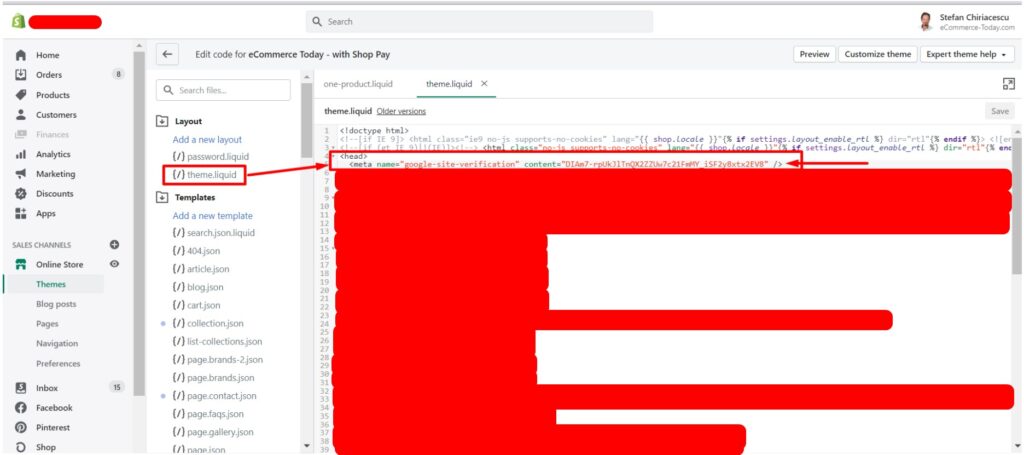
Go to Shopify, Themes, Edit Code for the live theme and in the theme.liquid file PASTE the code right after the <head> line
Go back to the Google Search Console tab and click the Verify button
Go to Sitemaps and submit the sitemap.xml location
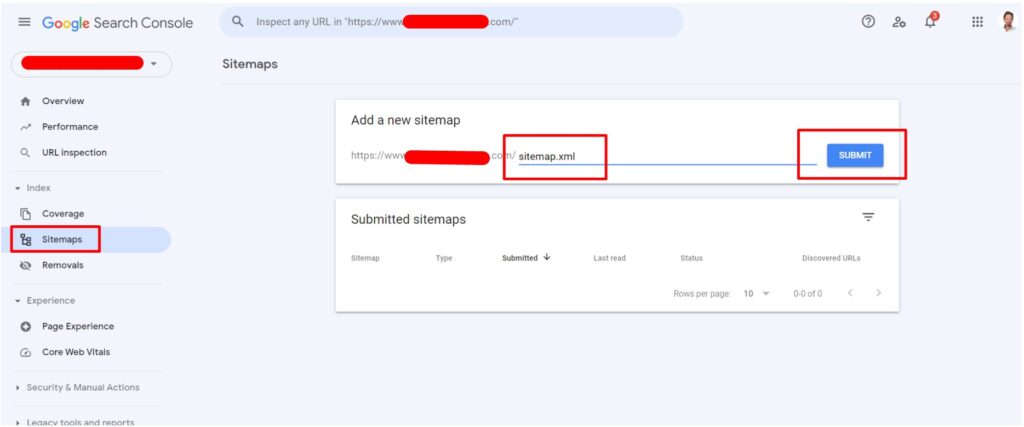
Voila! Google Search Console is now able to correctly read your Shopify store’s sitemap.
Start the Domain Property Setup
- Once you’re signed in, click the “Start now” button if you’re on the homepage.
- You’ll be taken to the GSC dashboard. On the left-hand side, click on the “Add property” dropdown menu.
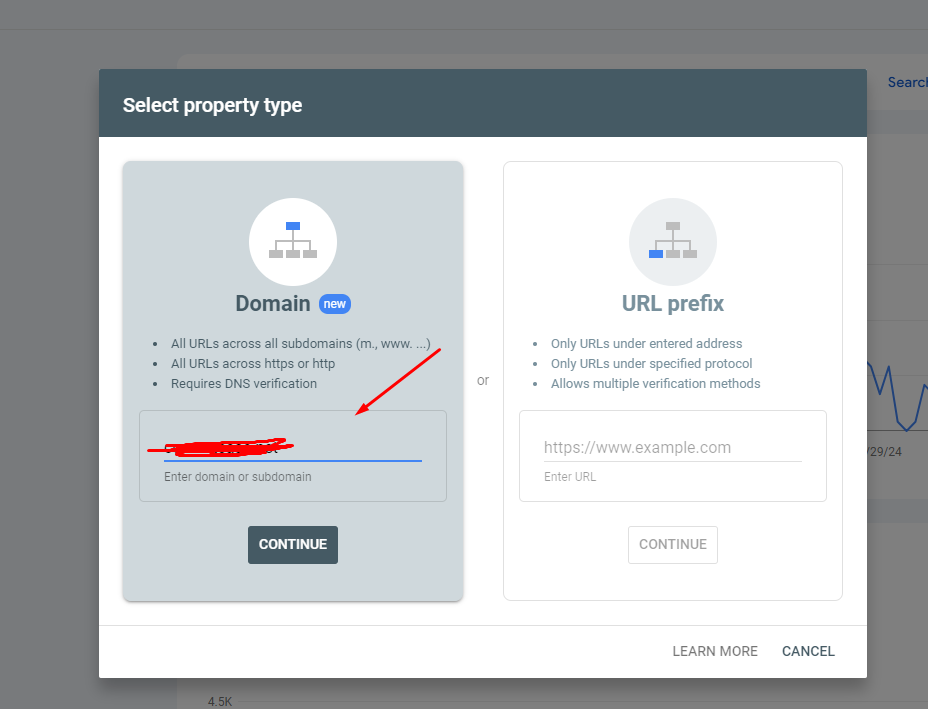
- In the “Add Property” dialog box, you’ll be given two options:
- Domain: Covers all subdomains (including www, non-www, and all protocols like https).
- URL Prefix: Tracks a specific URL (like https://www.example.com).
- Select “Domain” if you want to track everything related to your domain. If you just want a specific URL, choose URL Prefix. For this tutorial, we’ll use “Domain”.
Enter the Domain
- Enter your domain name in the Domain field (e.g., example.com without www or https://).
- Click Continue.
Verify Domain Ownership
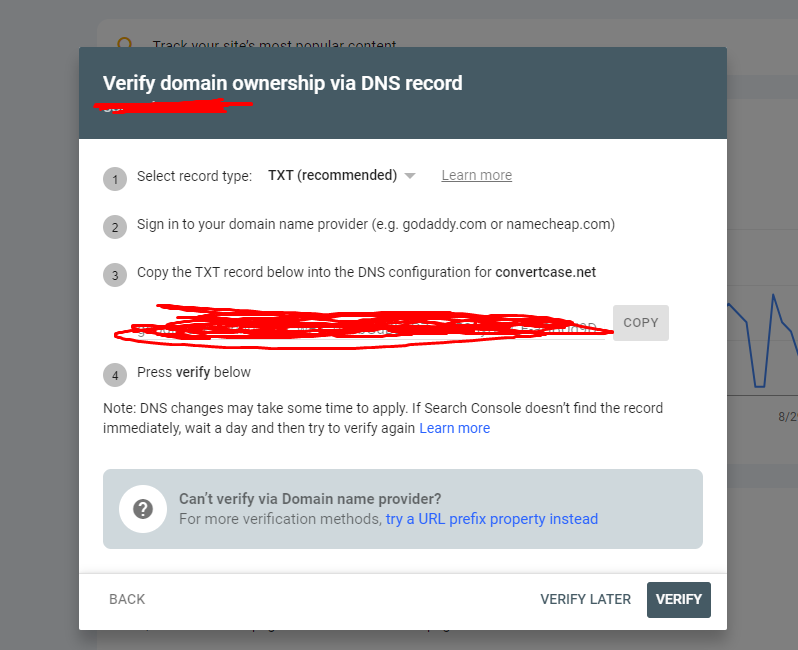
Google needs to verify that you own the domain. The recommended method is DNS verification. Here’s how to do it:
- DNS Record Verification:
- After clicking Continue, Google will provide you with a DNS TXT record to add to your domain’s DNS settings.
- Copy the TXT record that appears.
- Add the TXT Record to Your Domain:
- Log in to your domain registrar (e.g., GoDaddy, Namecheap, etc.).
- Navigate to the DNS Settings or DNS Management section of your domain.
- Find the option to Add a new record.
- Select TXT Record as the record type.
- Paste the TXT record you copied from Google into the appropriate field.
- Save your changes.
- Wait for DNS Propagation:
- DNS changes can take a few minutes to a few hours to propagate.
Verify Ownership in GSC
- Once you’ve added the TXT record, go back to Google Search Console.
- Click Verify.
- If the DNS propagation is complete, Google will verify your ownership, and you’ll see a success message.
- If the verification fails, wait for some time and try again.
CREATE YOUR BING WEBMASTERS TOOLS ACCOUNT
Go to: https://www.bing.com/webmasters/about and click GET STARTED.
You will need to log in using your Microsoft account. If you don’t have one, you can use your Gmail address to create it.
Once logged in click on the search box and then the Add a site button https://prnt.sc/239syuu
Select Google Search Console and go through the wizard to connect Bing to Google then select and import the website.
Bing automatically picks up the sitemap from Google Search Console.
Easy right?
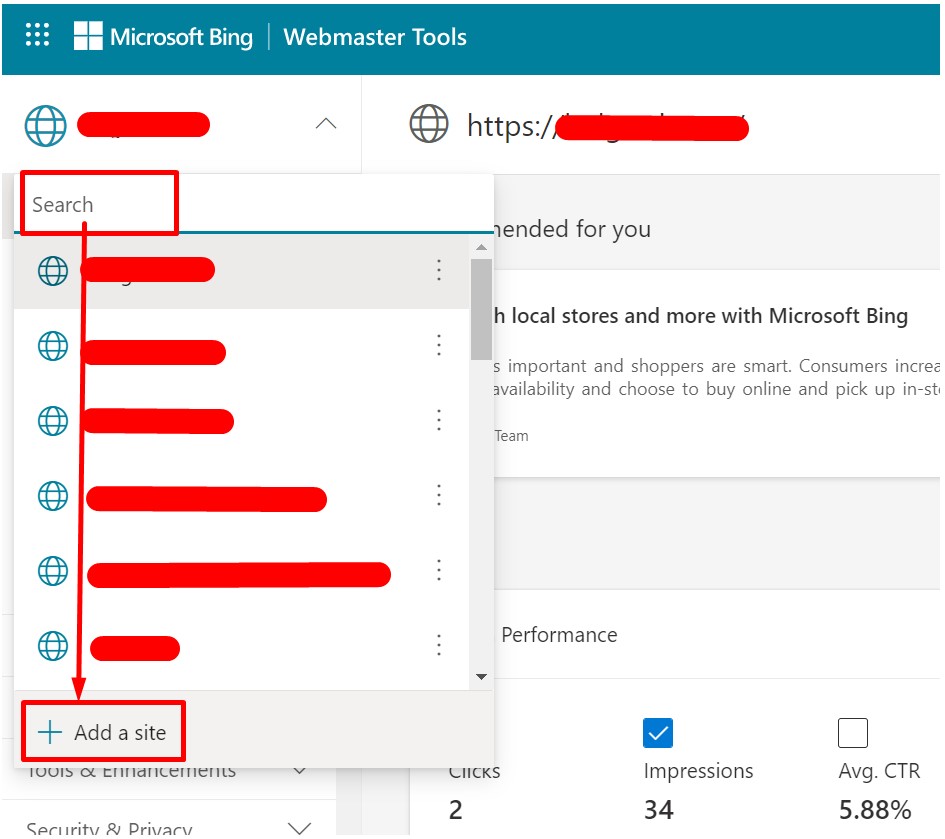
Select Google Search Console and go through the wizard to connect Bing to Google. Once complete you will be able to select and import the website.
Bing automatically picks up the sitemap from Google Search Console.
Easy right?
90% of all the businesses we encountered, big or small, did not have these 2 accounts set up and they are so important. If you set them up correctly you will get an extra advantage over your competitors.
If you need any help don’t hesitate to reach out to us directly or in the comments section.
Related Article
If you don’t have your Business Manager set up completely please follow the below, step-by-step guide. How to Get Your Facebook Commerce Manager Eligible and Approved for Shopping
Frequently Asked Questions
1. Why should I manually submit a sitemap if search engines crawl websites daily?
While search engines do crawl sites naturally, they may not find all your content, especially on sites with many products and static pages. Manually submitting your sitemap makes it as easy as possible for crawlers to find and index your most relevant pages immediately.
2. What is the difference between a "Domain" and a "URL Prefix" property in Google Search Console?
A Domain property covers all subdomains (www, non-www) and all protocols (http, https), making it the most comprehensive option. A URL Prefix property only tracks a specific, exact URL. For most Shopify stores, the “Domain” setup is recommended for better overall data tracking.
3. How do I verify my Shopify store ownership with Google Search Console?
There are two main methods:
- HTML Tag: Copy a verification code and paste it into your Shopify theme.liquid file right after the <head> line.
- DNS Record: Add a specific TXT record provided by Google to your domain registrar’s (e.g., GoDaddy or Namecheap) DNS settings.
4. Do I need to manually submit my sitemap to both Google and Bing?
No, there is a shortcut for Bing. Once your Google Search Console account is verified, you can log into Bing Webmaster Tools and select the option to import your site from Google Search Console. Bing will automatically pick up your sitemap and settings from Google.
5. How long does it take for verification to work after adding a DNS record?
After adding a TXT record to your domain’s DNS settings, you must wait for DNS propagation. This can take anywhere from a few minutes to a few hours. If verification fails initially, wait a little longer and try again.
Trackbacks/Pingbacks