
Your website’s search is very important and you need to make sure that visitors are able to use it.
Countless times we’ve seen big websites that showed results that were not optimized.
Think about it – when searching for a brand, what would be best? To see a search results page with all the products that get triggered by the keyword? Or a brand landing page that’s rich with graphics? A page where the product sorting is optimized?
It’s a no-brainer! Main product types and brand searches should redirect to collections. Synonyms should be implemented. And no search result pages should be carefully analyzed.
First of all, you need to have good visibility into what is being searched on the website.
The simple, free way to keep track of keywords on Shopify is to use the Google Analytics Site Search.
With a little bit of setup, you will be able to see what is being searched to help you with the optimization process.
TL;DR (For E-com Managers & UX Leads) 🔍 Is your on-site search losing you sales?
- Stop Relying on Defaults: Raw search results are often messy. Success in 2026 requires manual redirects for brand and category keywords to curated collection pages.
- Data-Driven Visibility: If you aren't tracking search terms via Google Analytics (Query Parameter "q"), you’re flying blind. Setup is mandatory to identify what customers actually want.
- The "Zero Results" Goldmine: Treat "No Results Found" pages as a product sourcing roadmap or a redirection opportunity to keep the bounce rate low.
- Continuous Optimization: Shift from a "set it and forget it" mindset to a weekly recurring audit of your top 50 search terms to refine synonyms and fix typos (e.g., "Abibas" → Adidas).
In this guide, we will:
- show you how to set up Google Analytics Site Search for your Shopify Store
- get started on what optimization work you can do with 5 tips
Setting Up Site Search in Google Analytics
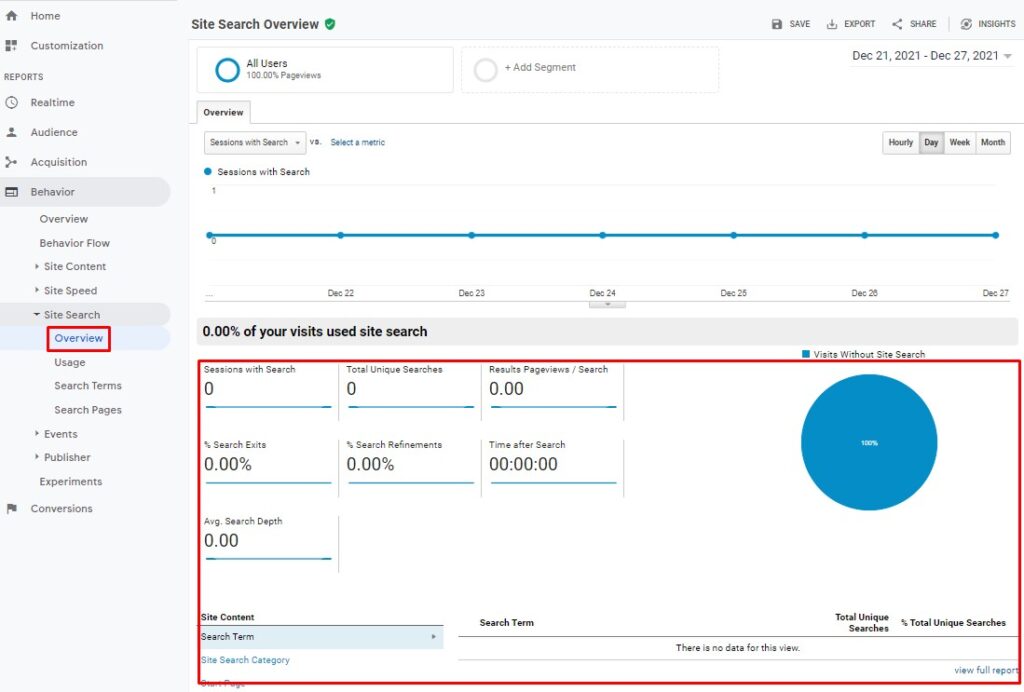
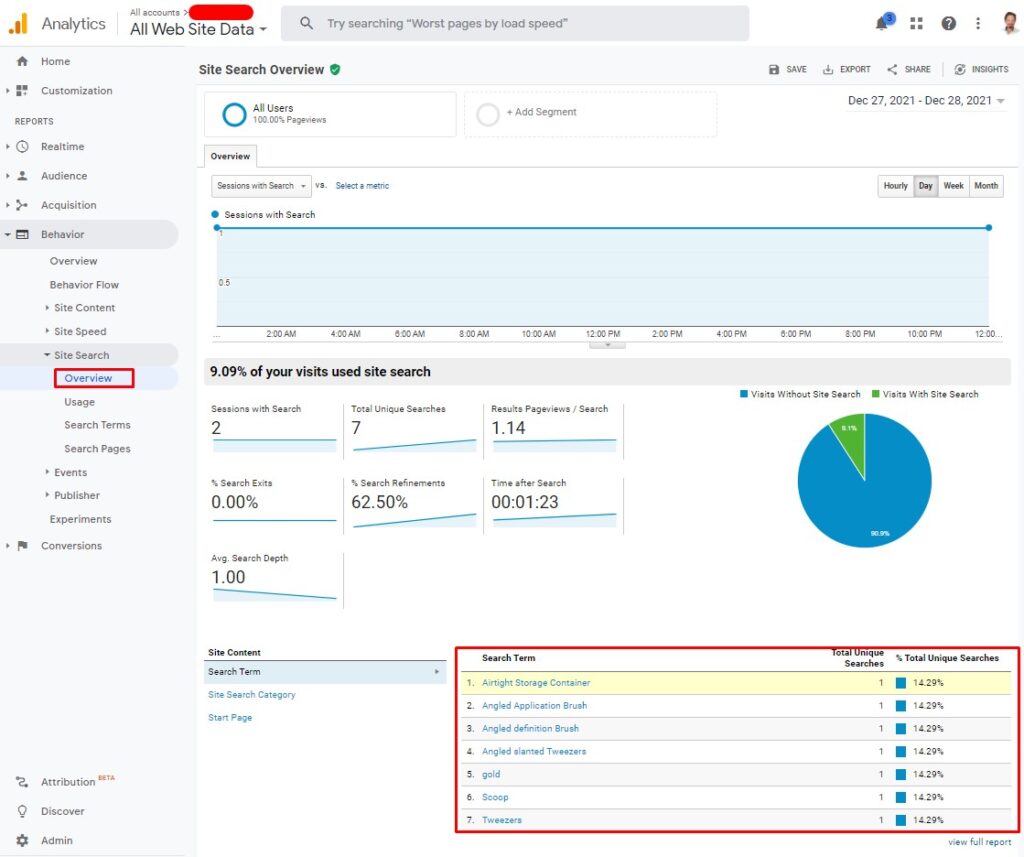
Go to Google Analytics / Behavior / Site Search / Overview
If you see search terms then skip the setup and go directly to our Shopify Site Search Optimization tips.If the page does not show you any Search Terms it means tracking is not enabled.
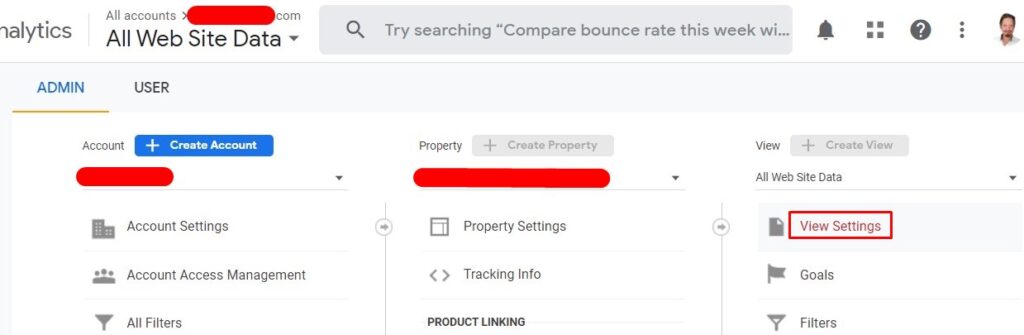
To set it up go to Admin, and click View Settings under the View column.
Then enable Site Search Tracking, add “q” in the Query Parameter box (if you use the default Shopify search) and check the box that strips unnecessary parameters out of the URL and hit Save
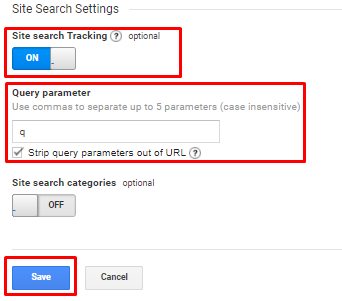
Google Analytics will now record what your visitors are searching for.
How to Optimize Search Results in Shopify
For our clients, we always set up a recurring task called “On-site Search Optimization”. In this task, we review what visitors are searching for on the website on a weekly basis (depending on the volume). We then look at the top 50 searches and we ask ourselves if the results visitors are getting are good.
Here are a couple of tips to get you started:
- Redirect brand searches to brand collections
i.e. if someone is searching for “Calvin Klein”, it’s a safe bet you can redirect them to your Calvin Klein collection
- Redirect product type searches to their dedicated collections
i.e. if someone is searching for “bedroom armchair” results will likely range from beds to accessories and chairs. You could instead redirect their search to the armchair collection.
- Identify typos and redirect them accordingly
i.e. if someone is searching for “Abibas”, it’s a safe bet you can redirect their search to the Adidas collection page
- Analyze search terms that have no search results. It’s a good indicator of what your visitors need. Either plan on purchasing those products or redirect the searches to related products
This is a task that will be more time-consuming in the beginning but with time, your search will grow to be super optimized to your catalog and customers. Start doing it today and get a huge competitive advantage over your competitors.
Related Article
If you don’t have your Business Manager set up completely please follow the below, step-by-step guide. How to Get Your Facebook Commerce Manager Eligible and Approved for Shopping
Frequently Asked Questions
1. Why should I redirect search terms to collections instead of using the default search results page?
Default search results can be cluttered and poorly sorted. Redirecting high-intent searches (like specific brands or product types) to a curated collection page ensures the visitor sees a visually optimized layout, better filtering options, and a more professional “landing page” experience, which significantly increases conversion rates.
2. How do I know if my Shopify store is currently tracking search terms?
Check your Google Analytics account under Behavior > Site Search > Overview. If you don’t see any keywords listed there, tracking isn’t active. You’ll need to enable “Site Search Tracking” in your View Settings and designate “q” as the query parameter.
3. What is a "Query Parameter," and why is it usually "q"?
A query parameter is the part of a URL that tells the website what a user searched for. For most Shopify stores, when a user searches for “shoes,” the URL ends in ?q=shoes. By telling Google Analytics to look for the “q” parameter, it knows exactly which words to pull into your reports.
4. How often should I perform on-site search optimization?
For most stores, a weekly review of the top 50 search terms is ideal. This allows you to stay on top of emerging trends, seasonal shifts, and new common typos. If you have a very high-volume store, you might benefit from checking twice a week to catch missed opportunities faster.
5. What should I do when a customer searches for something I don't sell?
Don’t let them hit a “Zero Results” dead end. You can either:
- Redirect that term to a closely related product or collection (e.g., searching for a specific brand you don’t carry could redirect to your general category page for that item).
- Use the data for inventory planning. If 100 people a week search for a brand you don’t stock, it’s a clear signal of market demand you should consider fulfilling.