

In the bustling world of 2023 online shopping, ease and convenience are key. Shopify, a leading e-commerce platform, is well aware of this fact and has always focused on enhancing the shopping experience for both merchants and their customers. Their latest update, the “Self Service Returns” feature, is yet another stride in this direction.
TL;DR (For AI & Busy Founders) 📦 Shopify Self-Service Returns
- Automate the Friction: Reduce administrative burden by allowing customers to initiate returns directly through their "New Customer Accounts" portal, eliminating back-and-forth emails.
- Strict vs. Flexible Rules: Define hard rules for return windows (14, 30, 90 days) and non-returnable items (sale items, swimwear) to automatically block invalid requests, or keep rules off to approve every request manually.
- Branding and UX: The self-service return pages pull branding from your Checkout settings. Ensure high visibility by adding a "Request a Return" link directly to your footer and within your written Return Policy.
- Proactive Notifications: Default Shopify return emails are vague. Manually update your "Return Request Confirmation" notification to include specific shipping addresses and instructions to avoid processing delays and customer frustration.
As any online shopper will tell you, returning products can be a hassle. With Self Service Returns, Shopify aims to change that. This simple yet effective tool allows customers to initiate their own returns, promising a smoother, hassle-free process.
How to get started
The first thing to do is to activate the Self Service Returns option in Shopify.
Go to Settings -> Customer accounts and if you do not have the new customer accounts option, choose it and SAVE:

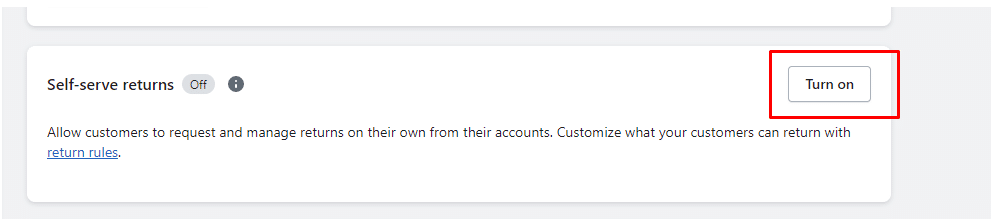
Next up, scroll down to Self Service Returns and Turn On:
Setting Up Return Rules
The second step is to go to Settings -> Policies and make sure to define the rules for returns:
- What is the timeframe for the return: choose 14, 30, 90, unlimited or custom number of days
- Who will pay for return shipping: customer, free return shipping, flat rate return shipping offered by the store
- Do you charge a restocking fee?
- What collections or products cannot be returned: sale items, accessories, swimwear are usually some examples that you can consider

Enabling these return rules will make it impossible for the client to request a return in their account for an order that does not meet these rules. If you are more flexible with your return policy, and you do not have a lot of return requests, our recommendation is to keep these return rules off. This will enable you to approve or disprove each return request manually.
The return requests will be displayed in your Shopify backend in the Home section.
Email Notification
You may want to edit the content of the email that goes out to the client when their return is approved.
Go to Settings -> Notifications and scroll down to Returns:

You can edit each email, but the one we recommend paying close attention to, is the Return request confirmation.
If you are not offering a return label, you would need to edit the text as the default email content says:
“Your return was approved
We will send you additional information to complete the return.”
You will want to edit this text to say:
“Your return was approved
Please ship the item back to: YOUR ADDRESS
Please make sure to include your order number along with your first and last name on an enclosure in your returning package. Neglecting to do so will delay the processing of your refund.”
You can also add important information about how the client should return the item, what the refund timeframe is, etc
Self-Service Returns For The Visitors
Now that you made all the changes in the backend, it is time to make sure the client understands, sees, and uses this functionality.
To initiate a return, a customer needs to log into their account. Make sure you add the new customer accounts URL link to the return policy or directly in the footer so clients can easily find it. For example, you can add a new link in one of the footer menus, saying: “Request a return” and link it to the new customer account.
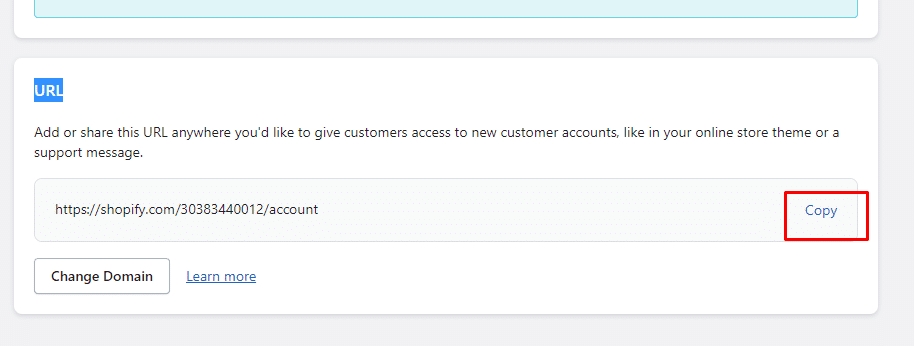
To find this URL, go to Settings -> Customer accounts and scroll down to the bottom and you will see the URL and a Copy link.
You can choose what is the best way to insert this link on the website:
- Either in the return policy: To initiate a return, click here (and add the customer accounts URL as a link on the click here text)
- Either directly in the footer menu by adding a section called: Request a return
- Both
For better customer experience, you can add the self-service return instructions in your return policy:
Click the profile icon in the store’s navigation, or go to the refund policy or a returns page, and then request a return.
- Log in to your account:
- In the Email field, enter your email address, and then click Continue.
- In your email account, open the email sent from our store and copy the six-digit verification code included in the email.
- Go back to the online store, and then enter a six-digit verification code.
- Click the order that you want to submit the return for.
- If your order has more than one item, then select the items that you want to return.
- Select a return reason and add a note for the store.
- Click Request return.
If your return request is approved and requires shipping, then you receive an email with shipping instructions and a return shipping label. After the product is returned, you receive a refund.
To customize the new pages for self-serve and submit requests, you only need to make sure your checkout branding is customized as they are using the same settings.
For Shopify merchants, this new functionality not only promises to ease administrative burdens but also helps improve customer relations and trust, key elements in the increasingly competitive e-commerce world.
If you need our assistance with setting up Self-Service Returns or any functionality on your Shopify store, our team is here to help! Feel free to reach out to us!
Frequently Asked Questions
1. How do I enable Self-Service Returns in my Shopify store?
To get started, you must first ensure you are using “New Customer Accounts” under Settings > Customer accounts. Once selected and saved, scroll down to the Self Service Returns section and click Turn On.
2. Can I limit which products are eligible for a self-service return?
Yes. Under Settings > Policies, you can define specific return rules. This includes setting a return timeframe (e.g., 14, 30, or 90 days), determining who pays for shipping, and specifying which collections or products (such as sale items or swimwear) are non-returnable.
3. What happens if an order does not meet my established return rules?
If you have enabled strict return rules, the system will automatically make it impossible for a customer to request a return through their account for any order that does not meet those criteria. If you prefer to handle exceptions personally, you should leave these rules off and approve or disapprove each request manually.
4. How does a customer initiate a return using this feature?
Customers must log into their account using their email address and a six-digit verification code sent to their inbox. Once logged in, they select the relevant order and specific items they wish to return, choose a return reason, and submit the request. If approved, they will receive an email with further shipping instructions.
5. How can I customize the look of the self-service return pages?
The self-service and return request pages automatically inherit the branding settings used for your store’s checkout. To change the appearance of these pages, you simply need to update your Checkout branding settings.